
Facilitating Synchronous Discussions

In Person or Online
When planning a synchronous discussion, whether these are in person or online (via Zoom), there are a number of facilitation approaches that can be used along with the general facilitation tips. During the session, you can also lead by example and work with your students on developing their skills in having difficult conversations.
If you are concerned students are getting distressed see Managing Distress for further advice.
Facilitating a synchronous discussion
- Keep discussions focused and maintain a level of control over them (not completely controlling, but be an active facilitator – (e.g. ask questions, clarify points, correct misinformation, refer back to readings and previous discussions).
- Remind students of the ground rules and start with a prompt such as “it takes courage to speak openly, and it also takes courage to listen and understand views that may differ from yours…”
- Manage your emotions.
- Remember students have different cultural and language understanding.
- Unlike an asynchronous discussion, students often don’t have time to find the right words. This could be the first time students are expressing a certain idea. Take the time to get them to clarify what they mean. Sometimes what they are saying is different than the way others interpret it.
- Listen to understand – aim to listen to what they are saying and get a deeper understanding.
- Agree to disagree.
Read “How to Lead Uncomfortable Class Discussions” by Alexandra Sedlovskaya
Stopping Zoom participant activity
Although it rarely happens, sometimes an online synchronous discussion can get out of instructor control. There are quick measures to deal with this via the security option.
Step 1
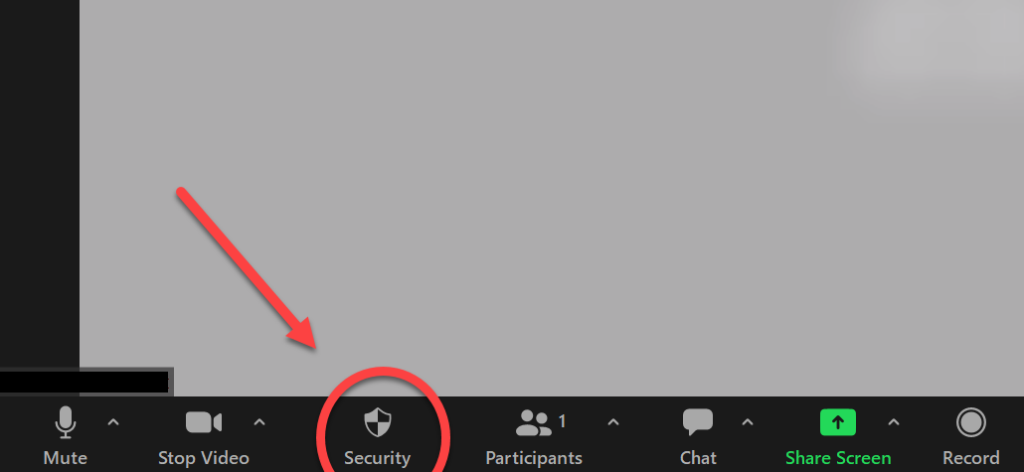
Click on the security button at the bottom of the screen near the participants and your video options. (To see the security option, you will need to be either the host or co-host).
Step 2
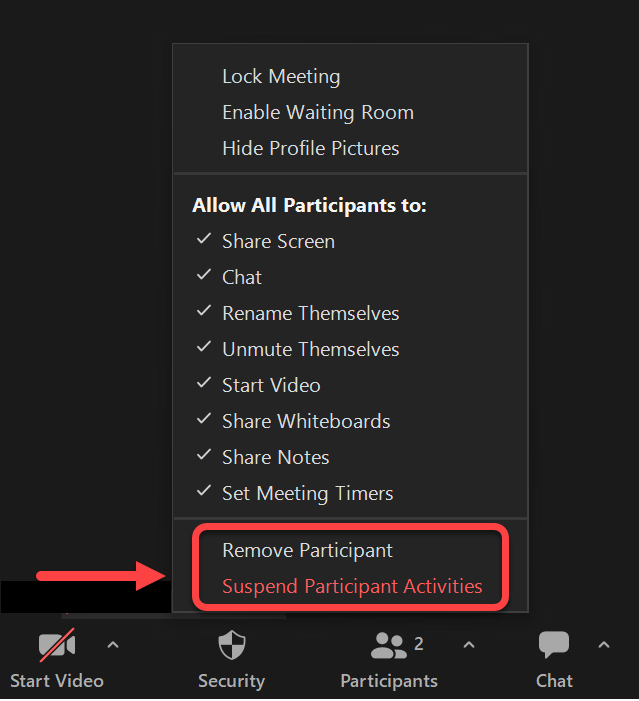
Once you have clicked on security, you will see options for what participants are permitted to do. At any time, you can adjust these (e.g. limit screen shots or the chat feature). In extreme situations, you can suspend all participant activity (to stop the offensive behavior) and then remove an individual if appropriate.